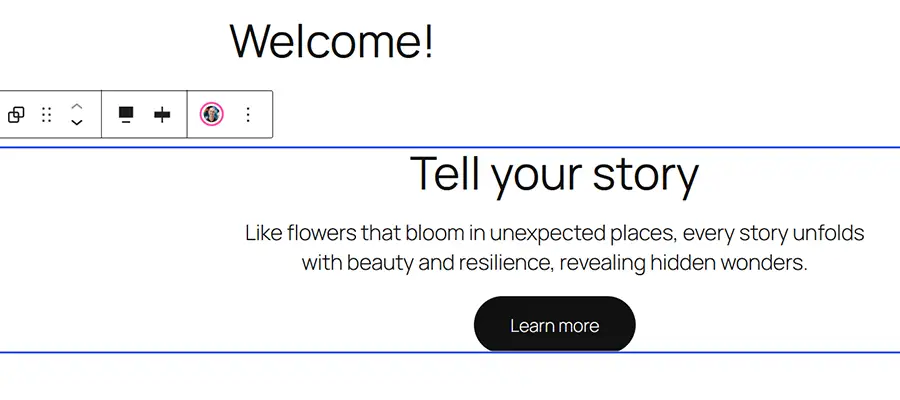
The WordPress Block Editor excels at creating custom layouts, offering numerous core and third-party blocks to choose from. These blocks provide endless possibilities without needing to write any code. By adding a block theme, you can enjoy a browser-based design and development experience.
However, one important aspect left behind by WordPress blocks is code commenting, which is common when building custom PHP templates and writing CSS. Comments help provide context for what a code snippet does or why it was implemented.
There are instances when additional context is beneficial in the Block Editor. For example, you may want to share information about a block with clients or colleagues, especially if it’s locked or requires a specific setting for proper display. Sometimes, a reminder of why something was done is necessary.
This is where the WordPress Notes feature proves useful. It allows you to add notes to specific blocks and even maintain a threaded conversation. This feature enhances your editorial workflow and offers a quick reference for users.
Here’s an overview of how the feature works. We’ll demonstrate how to add and retrieve notes for any block on your site, along with sharing some tips and hidden gems worth knowing.
Sample Project: Let’s Collaborate With Blocks
The WordPress Notes feature is part of the broader Gutenberg Collaboration phase. At a minimum, it allows for adding reminders or having asynchronous discussions with other site users. We’ll focus on this second aspect here.
We’ll simulate a discussion among colleagues regarding a Group block. We promise it will be quick and easy!
Step 1: Choose a Block
The first step is to open a page or post in the Block Editor and select a block. We’ll choose a Group block at the top of the page to discuss its styling with a colleague.
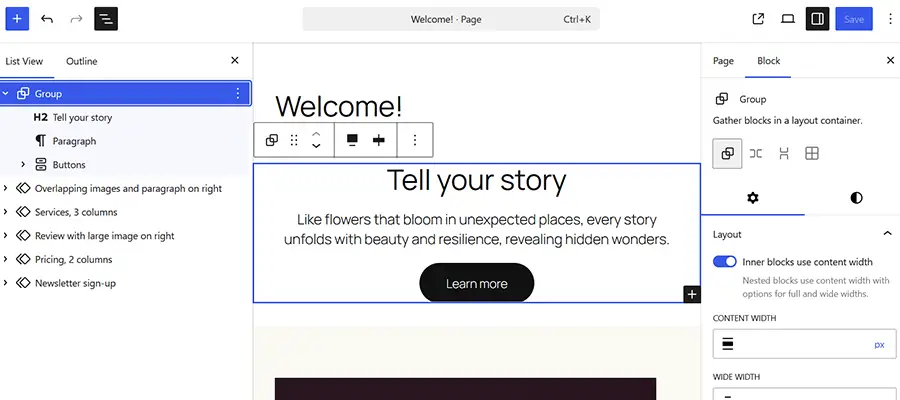
Step 2: Add a Note
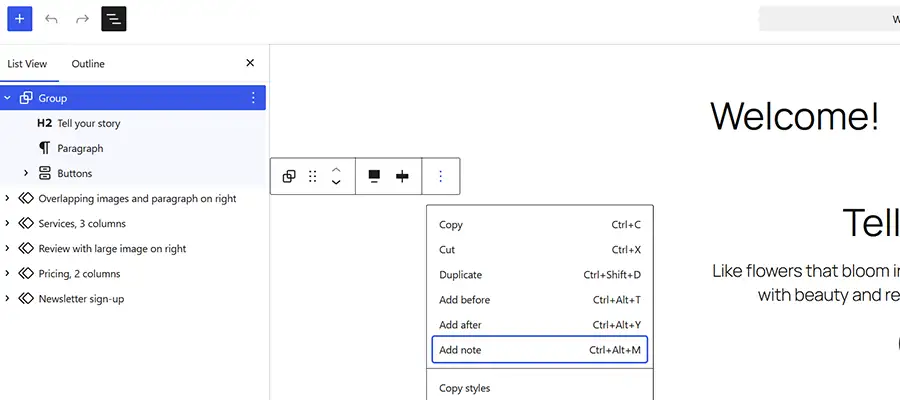
Now that we know which block we want to discuss, it’s time to add a note.
- Click on the Options menu (⋮) and select Add note.
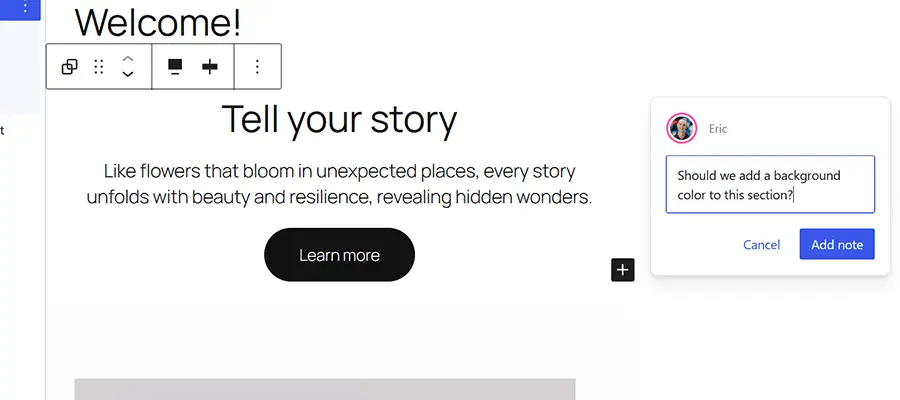
- A note dialog appears on the right side of the screen. We can add our note in this space.
- Click the Add note button to save the note.
For reference, we asked if our Group block should have a background color to stand out from the rest of the content.
Next, we’ll wait for our colleague to reply to our note. When they click the block in question, they’ll see a user avatar that indicates a note is available.